How to Bookmark a Course in SimpliTrain
Bookmarking a course in SimpliTrain allows learners to quickly access important courses without having to search for them again. It also serves as a useful reminder for future reference.
Steps to Bookmark a Course
- Navigate to the Event Page
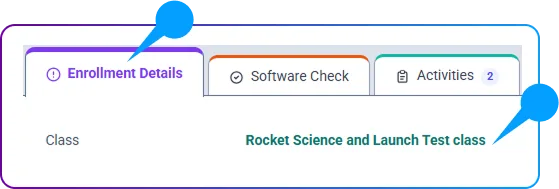
- From the Class Enrollment Page, go to the Event Page by clicking the event name related to your course.
2. Access the Course Details
- On the Event Page, locate the Course Information section.
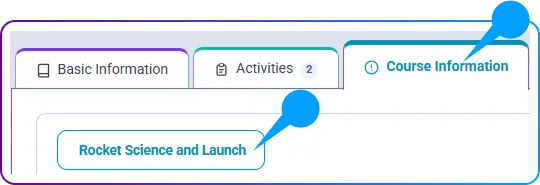
- Click on the Course Name to open the Course Detail Page.
3. Bookmark the Course
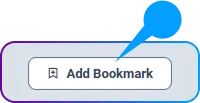
- On the Course Detail Page, find the Bookmark option.
- Click the “Save” button (bookmark icon) on the course page.
4. Quick Access to Bookmarked Courses
- Once saved, the course appears under My Training > Bookmarks.