How to Print Transcripts in SimpliTrain
The Transcript section in SimpliTrain serves as a comprehensive record of all completed classes, course enrollments, learning plan enrollments and certifications. Learners can access their transcript at any time to review their progress and download certificates for completed training.
For added convenience, SimpliTrain provides an option to Print Transcripts directly from the platform.
Steps to Print Your Transcript
- Access the Transcript Page
-
- Select “My Transcript” from the top navigation.

- This will redirect you to the Transcript page, where all your completed training records are listed.
- Select “My Transcript” from the top navigation.
- Locate the Print Option
- On the My Transcript page, select “Print Transcript“.
- Click on the button to open the print dialog.
- On the My Transcript page, select “Print Transcript“.
- Print Your Transcript
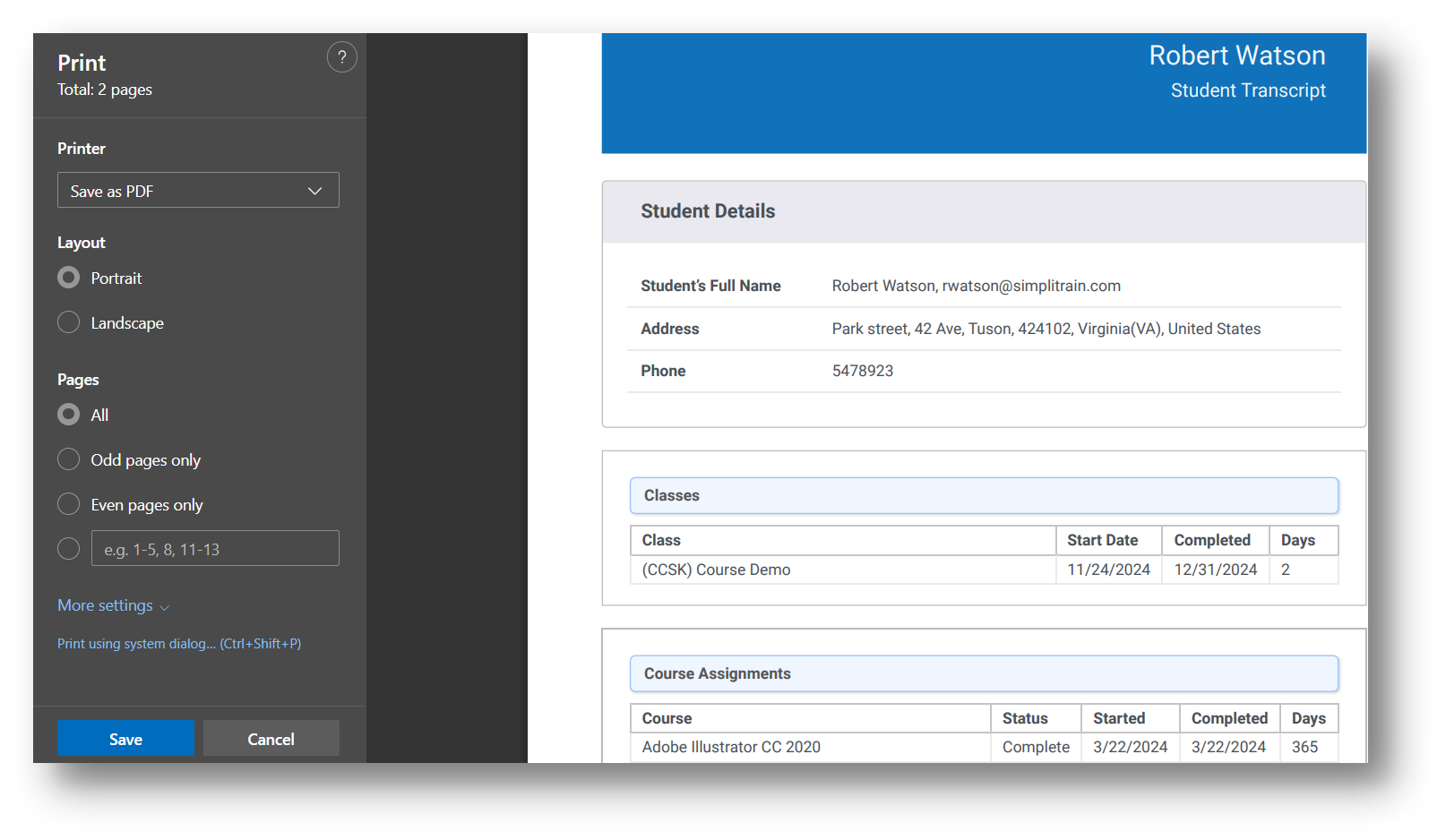
-
- Adjust any necessary settings (e.g., printer selection, page layout).
- Click Print to generate a hard copy or Save as PDF for digital storage.